
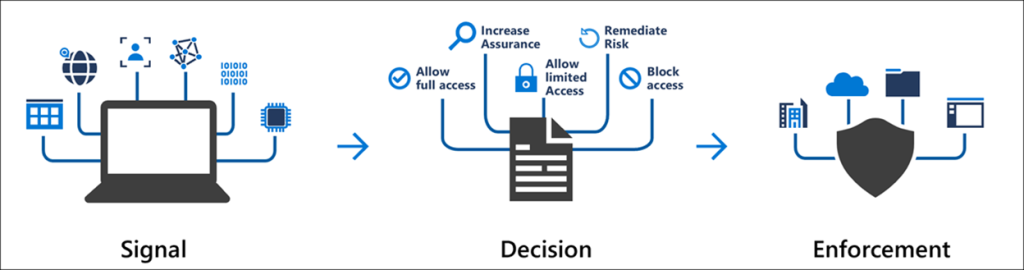
The Real Problem with “Just Enable MFA”
Most organisations believe they are protected once they enable Multi-Factor Authentication. The board receives a reassuring slide: “MFA deployed, identity secured.”
That is a dangerous oversimplification.
A default MFA deployment with Conditional Access left at Microsoft’s out-of-the-box settings leaves critical gaps that attackers actively exploit. Legacy authentication protocols bypass MFA entirely. SMS-based verification is trivially interceptable. Without device compliance checks, a compromised laptop with valid credentials walks straight through your front door.
The 10 policies in this guide address those gaps systematically. They represent the baseline we deploy for every enterprise client — not as a one-size-fits-all template, but as a proven starting framework that we then customise to your organisation’s specific risk profile, licensing, and operational requirements.
Why Deploying Conditional Access Is Not a Weekend Project
Deploying Conditional Access requires careful planning. Rushing into enforcing strict access controls can lock out your entire organisation — from the CEO to your automated service accounts. Before configuring a single policy, consider these risks:
The Lockout Risk
Applying policies to “All Users” without proper exclusions can permanently lock administrators out of the tenant. Without emergency access accounts configured correctly, a single misconfiguration means calling Microsoft Support and waiting days for recovery.
Service Account Impact
Legacy applications and synchronisation accounts (like Microsoft Entra Connect) often fail silently when MFA is enforced incorrectly. Your directory sync stops, new users don’t provision, and password resets break.
Our Approach: Report-Only Mode First
We never deploy a policy in “On” mode immediately. Every policy goes through a strict “Report-Only” phase where we analyse sign-in logs, identify impacted users and applications, and add necessary exclusions — before enforcement.
This is why the how matters more than the what. Knowing which policies to create is only step one. The real challenge is implementing them without locking out your CEO or breaking your service accounts.
The 10 Essential Conditional Access Policies
These policies provide comprehensive security coverage. However, they require precise tuning to match your specific licensing (P1/P2) and organisational structure. Each policy below includes the implementation challenge and our specific approach.
Require MFA for All Administrators
Protecting Global Admins is obvious, but many organisations miss subtle, high-privilege roles like Authentication Administrator or Privileged Role Administrator. If this policy fails or the MFA service goes down, you lose control of your tenant.
Our Approach: We implement emergency access accounts and exclude them carefully to ensure you always retain control during a disaster.
Require MFA for Azure Management
Attackers who gain access to the Azure Management portal can destroy your entire infrastructure. This policy strictly gates access to Azure resources.
Our Approach: We configure Authentication Strengths to require Phishing-Resistant MFA (FIDO2 or Certificate-based) for these sensitive portals. Standard SMS is not sufficient.
Block Legacy Authentication
Legacy protocols (POP3, IMAP, SMTP) do not support MFA, making them the #1 target for password spray attacks. If you leave these open, your MFA policies are effectively useless.
Our Approach: We use a discovery phase to identify hidden dependencies — older network printers, scanners, and legacy Line-of-Business applications — before enforcing the block.
Require MFA for Microsoft Admin Portals
This secures access to the interfaces where your data governance and security settings live, such as the Exchange Online and Microsoft Purview portals.
Our Approach: We align this policy with Zero Trust principles by verifying not just the user, but the device compliance status before granting access.
No Persistent Browser Sessions
This protects user access on unmanaged devices by preventing browser sessions from remaining signed in after the window is closed.
Our Approach: Critical for organisations with a hybrid workforce or BYOD policy. We ensure that a stolen cookie cannot be used to replay a session days later.
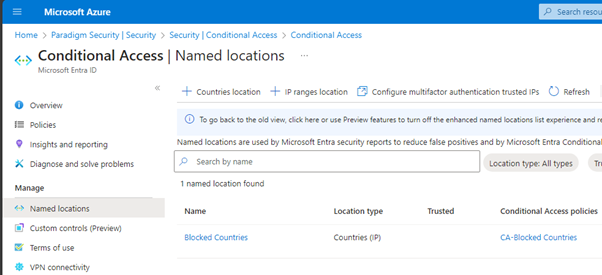
Block Access by Location
Restricts access from specific geographical regions to reduce attack surface and meet compliance requirements (e.g., preventing logins from sanctioned countries).
Our Approach: Location blocking alone is not enough — attackers use VPNs. We combine it with Impossible Travel detection (Policy #8) to catch attackers masking their location.
Azure Portal — Conditional Access Named Locations
Require Password Change for High-Risk Users
When Microsoft’s threat intelligence detects that a user’s credentials have been leaked on the dark web, this policy forces an immediate password reset.
Our Approach: Without this automation, a compromised credential might remain active for weeks until IT notices. This policy remediates the threat in real-time, 24/7.
Require MFA for Risky Sign-Ins
This policy uses behavioural analysis to detect anomalies — such as a user logging in from London and Tokyo within one hour (“Impossible Travel”). Requires Entra ID P2.
Our Approach: Configuring the risk levels (High vs. Medium) incorrectly leads to “MFA Fatigue.” We tune these thresholds to balance security with user convenience.
Require Phishing-Resistant MFA for Administrators
As attackers get smarter, they learn to bypass simple SMS codes. This policy forces your admins to use Phishing-Resistant methods, such as FIDO2 security keys or Windows Hello for Business.
Our Approach: NIST guidelines now recommend phishing-resistant authentication for all privileged access. We help you transition your IT team to these modern standards without disrupting their workflow.
Require Compliant Device for Administrators
For the highest level of security, we ensure that admins can only manage the environment from a device that is managed, updated, and healthy.
Our Approach: If an admin’s laptop is infected with malware (and marked “Non-Compliant” by Defender for Endpoint), this policy instantly blocks their access to the admin portal, preventing lateral movement.
Don’t Lock Yourself Out.
Don’t Break Your Business.
Conditional Access misconfigurations are the #1 cause of self-inflicted IT outages. Before you flip that switch, let us show you exactly what will break — and how to prevent it.
Get Your Free Risk AssessmentWhy Expert Implementation Matters
Misconfigured Conditional Access is a leading cause of self-inflicted IT outages. We don’t just flip switches. We use a rigorous Audit-Test-Enforce methodology to validate every policy impact before enforcement.
Without Expert Implementation
- ✕Policies deployed directly in “On” mode
- ✕CEO locked out on Monday morning
- ✕Service accounts fail silently for hours
- ✕Emergency means calling Microsoft Support
- ✕Weeks of firefighting and rollbacks
With NPS Methodology
- ✓Report-Only validation before enforcement
- ✓Phased ring deployment by user group
- ✓Dependency discovery audit upfront
- ✓Break Glass accounts configured and tested
- ✓Zero-disruption rollout, guaranteed
Identity is your new perimeter. But the gap between “MFA enabled” and “identity secured” is enormous. These 10 policies close the most critical gaps — but only when implemented with the operational rigour that prevents you from locking out your own organisation.
One wrong click can lock out your entire C-Suite. We block the attackers, not your CEO.
Microsoft Entra ID & Zero Trust
From Conditional Access to full Zero Trust — discover how we implement identity security for enterprises that go beyond basic MFA.
View Zero Trust ServicesMicrosoft Sentinel SOC
Conditional Access is just the first line of defence. See how Sentinel correlates your identity signals with threats across your entire environment.
View Sentinel Services